ADA/WCAG Compliance: Semantic HTML and ARIA
Semantic HTML is the foundation needed to create accessible web content. By using semantic HTML, we get accessbility built-in. We also can optimize web pags for SEO (better indexing), and give mobile users a streamlined experience (better size and responsiveness). At a base level with semantic HTML we tell the browser what content we have and where it is located on the page.
Avoid Div Soup
Within the body tag we should be using a variety of different HTML tags based on the content. There are some we should always have on a page to avoid landmark errors:
navheadermainfooter
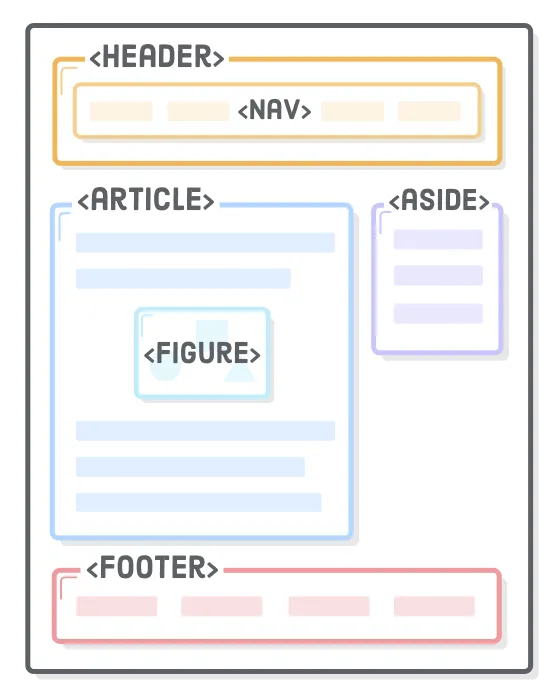
Sections & Articles
But what about content? Maybe you have multiple containers on the page. Those should be subdivided into section or article elements to avoid multiple div levels. To remember where these tags differ, it is good to know that an article is used for form posts, news articles, blog entries, or a user-submitted comment. Content that falls outside those realms should be contained by the section — it can even be nested within article tags as long as it has its own heading (h2, h3…).
Since both these elements can be independent of their container (main for example), they can both include their own header and/or footer like in the example below:
  <article>
    <h2>Jurassic Park</h2>
    <section>
     <h3>User Reviews</h3>
      <article>
        <h4>Cruelty to animals!</h4>
        <p>I hope the markers of this film face criminal lawsuits over their treatment of these beautiful creatures. I am disgusted!</p>
        <footer>
          <p>Posted on <time datetime="2022-03-21 19:00">April 1</time>
            by Lisa
          </p>
        </footer>
      </article>
    </section>
  </article>
As you can see above, there are no div tags used! Gold stars all around. Check out the Mozilla docs for more specific info on article and section.
Nav & Menus
Another easy semantic change is to make sure your navigation or menus are coded as individual list items rather than divs. This way a screenreader can see the individuals links and convey their proper grouping to the user. You should have at least one nav element in the document unless the page is simply information.
You can set this up several ways, but here are a couple examples:
Use nav as the container and use an unordered list for each link item.
  <nav>
    <ul>
      <li><a href="/about">About Us</a></li>
      <li><a href="/products">Available Products</a></li>
      <li><a href="/contact">Contact Us</a></li>
    </ul>
  </nav>
Use menu as the container and list items within, no ul or ol needed.
  <menu>
    <li><a href="/bedding">Bedding</a></li>
    <li><a href="/living">Livingroom</a></li>
    <li><a href="/bath">Bathroom</a></li>
  </menu>
Advanced Tags
There are numerous HTML tags to use depending on the page content. Often these can be nested in other tags. I have included a short list below with definitions, but you can find a great comprehensive reference guide here.
Aside: indirectly related to main body (sidebar, callout boxes)
Blockquote: enclosed text or quotation
Figure: self-contained image or graph content
Figcaption: legend or caption for parent figure element
Menu: semantic alternative to unordered list
Picture: alternative version of image w/ multiple sources
Dialog: dialog box or other interactive components
Details: creates a disclosure widget in which information is visible only when the widget is toggled into an “open” state
ARIA
ARIA stands for Accessible Rich Internet Applications, and is a set of roles and attributes that make web applications more accessible for assistive devices like screenreaders. An important thing to note is that ARIA is meant to supplement HTML and not replace it. In fact, WebAim’s survey of over one million home pages found that the misuse of ARIA contributed to 41% more detected errors than pages without ARIA.
ARIA Roles
There are various types of ARIA roles. Since we’re focusing on Semantic elements, I am only going to cover a few of the ARIA categories.
- Document structure Provide structural description to section of content. Semantic HTML with the same meaning should be the default.
- Widget Used to define interactive patterns.
- Landmark Identify organization and structure of page.
There are other categories, but these are used the most on our sites. I would recommened looking into the document structure and landmarks specifically.
Now for a little quiz! Does the code below pass WCAG compliance?
<body>
  <div role="navigation"></div>
  <div role="main">
    <div role="complementary"></div>
    <div role="article"></div>
    <div role="region"></div>
  </div>
  <footer role="contentinfo"></footer>
</body>
ANSWER: Yes, but it is more difficult to read and needless in some areas (the footer for example).
ARIA States and Properties
Properties and states modify the accessbility tree, and impacts how assistive technology interprets the content for the user. Similar to ARIA roles, there are more states and properties than I have room (or patience) to list. Some key categories and examples are:
- Widgets (aria-label, aria-modal, aria-checked, aria-expanded, etc)
- Live (aria-busy, aria-relevant, etc)
- Drag-and-drop (aria-dropeffect, aria-grabbed)
- Relationship (aria-colcount, aria-description, aria-describedby, aria-labelledby, etc)
And that is just the tip of the iceberg. Please see the MDN web docs for an in-depth explanation of each state and property.
Conclusion
Whoa, that was a lot of information. Are you still there??? If so, thanks for reading. Here are some key points to remember as you develop WCAG-friendly pages with semantic elements:
- Use best-practices like semantic HTML to provide content for a broad range of users
- Not sure if you page is compliant? Test!
- No ARIA? No problem…maybe. It is best to default to semantic elements before introducing ARIA.
- ADA/WCAG complaince is a marathon, not a sprint. You should continually test and build with WCAG in mind.
Resources
Want more info on web accessbility geared toward devs? Sign up for some newsletters:
Additional reading and docs:
HTML: A good basis for accessbility
Why and When to use semantic HTML and ARIA
Testing tools: